Responsive Web Design Best Practices: A Complete Guide
.avif)
.png)
.png)

.png)
.png)
.svg)
Most websites look great on a designer's 27-inch monitor. The real test? A 375px iPhone screen with a slow 4G connection. That gap between what designers see and what users experience is where rankings are lost, conversions drop, and visitors leave for good.
Responsive web design best practices are the techniques that help your website automatically adapt to any screen size without sacrificing usability, speed, or visual quality. If your site isn't built around these principles, you're already losing visitors and rankings to competitors who are.
So what separates a site that works everywhere from one that quietly breaks on half the devices visiting it? What does it actually take to apply the best practices for responsive web design in 2026?
Here's what you need to know, and what most guides still get wrong.
Quick Answer: Responsive web design best practices in 2026 include mobile-first design, fluid grid layouts, optimised images, effective media queries, accessible navigation, and continuous performance monitoring. Applying these practices ensures your site works seamlessly across all screen sizes, improves Google rankings, and directly boosts engagement and conversions.
What Is Responsive Web Design and Why Does It Matter?
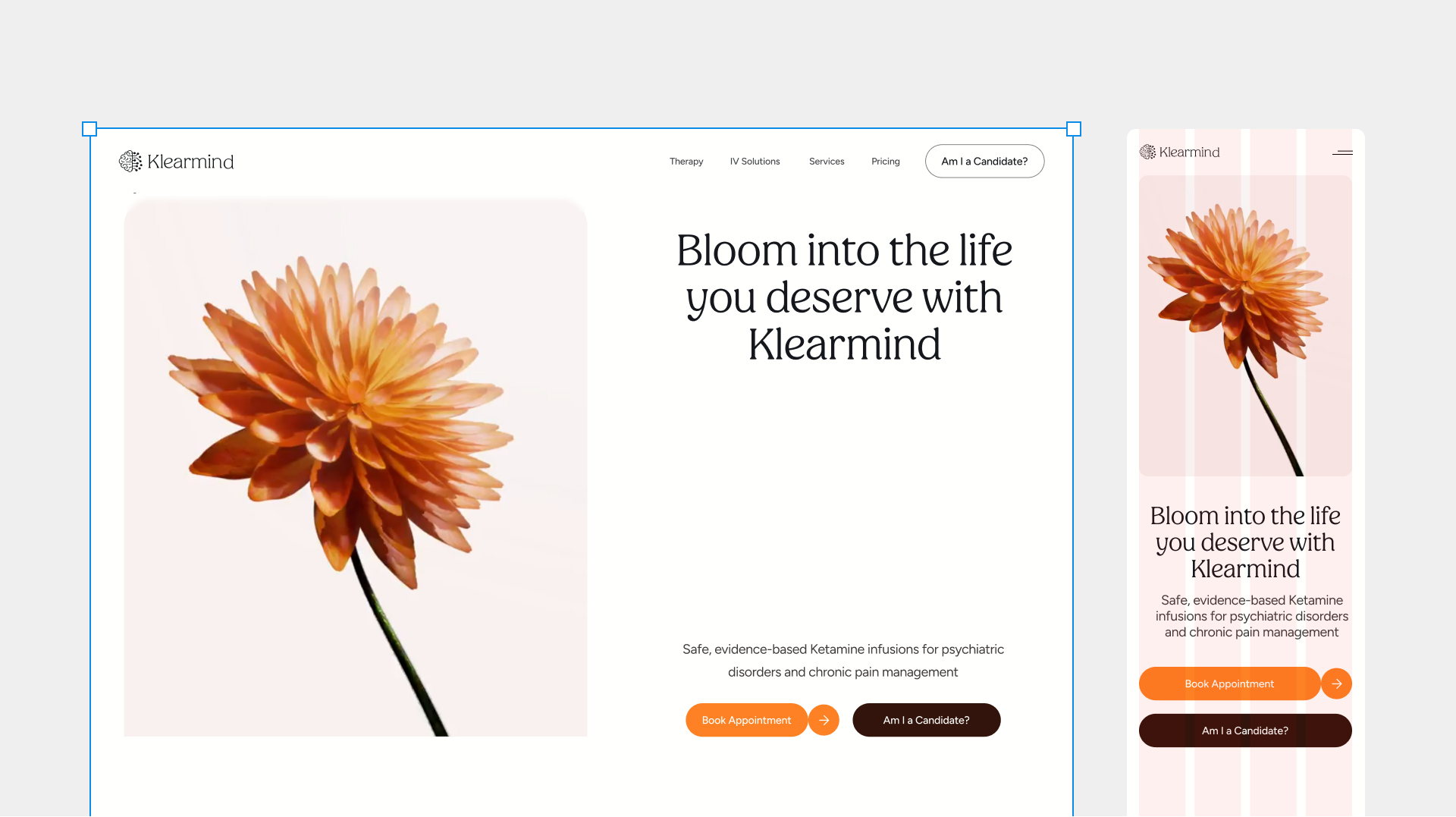
Responsive web design is an approach that enables websites to automatically adjust their layout, content, and functionality across different devices and screen sizes, creating a seamless user experience.
Unlike adaptive design, which serves different fixed layouts based on detected device type, responsive web design uses a single flexible codebase that reshapes itself fluidly. Think of adaptive as a tailor who makes five suits in fixed sizes. Responsive design is a suit cut from stretch fabric that fits everyone.
How It Adapts to Different Screen Sizes
Responsive layouts use relative units, flexible grids, and media queries to reflow content based on the available viewport. The same HTML is served to every device. CSS handles the rest.
Responsive vs. Adaptive Design
Why It Matters for SEO
Google's mobile-first indexing means your mobile version is what gets crawled and ranked. A broken mobile experience doesn't just frustrate users. It directly lowers your position in search results. According to Google Search Central, the mobile version of your site is the primary version Google evaluates.
Over 60% of global web traffic now comes from mobile devices, according to Statcounter's Global Stats. Responsive design is not a bonus feature. It is the standard.
Why Responsive Web Design Is More Important Than Ever in 2026
The need for responsive websites has never been more urgent. Mobile and tablet users now account for the majority of web sessions globally, and their expectations have risen sharply alongside app-quality experiences.
Google's Mobile-First Indexing
Google completed its mobile-first indexing rollout across all sites. Your desktop version is effectively a secondary concern for the crawler. Sites with poor mobile experiences rank lower, regardless of how strong the desktop version looks.
Emerging Device Types
New device categories are expanding what "screen sizes" means in practice. Foldable phones, ultra-wide monitors, smart TVs, and AI-powered interfaces all present new responsive challenges. The best practice for responsive web design in 2026 is designing for a range of contexts, not just specific device dimensions.
Impact on Conversions
Think with Google found that 53% of mobile users abandon sites that take longer than 3 seconds to load. A poor responsive experience doesn't just lose rankings. It loses revenue.
Core Web Vitals as Ranking Signals
Google's Core Web Vitals (LCP, INP, CLS) are direct ranking factors. Responsive design done poorly tanks all three. Done well, it improves all three simultaneously.
Adopt a Mobile-First Design Approach
Mobile-first design means starting your design and development process with the smallest screen and progressively enhancing the experience as the viewport grows. This is the foundational best practice for responsive web design, and it's not philosophical. It's practical.
When you design mobile-first, you are forced to prioritise what actually matters. Content, calls to action, and core user flows come first. Decoration comes later. That discipline produces cleaner, faster sites at every screen size.
What Mobile-First Means in Practice
Write your CSS for mobile screens by default. No min-width needed for base styles. Add min-width breakpoints to layer complexity as screens grow. Every design decision starts with: "does this work at 375px?" before asking if it works at 1440px.
Progressive Enhancement Strategy
Start with a baseline that works on any device. Then layer in richer interactions for more capable screens. This produces better results than graceful degradation, where you start complex and strip things away.
Common Mobile-First Mistakes to Avoid
- Designing at 1440px in Figma first, then trying to compress the result (produces broken mobile layouts almost every time)
- Hiding content on mobile that users actually need, rather than restructuring it
- Using touch targets smaller than 44x44px, which causes tap frustration on real devices
Use Flexible Grid Layouts
Fluid layouts are the structural backbone of any responsive site. They use relative units such as percentages rather than fixed pixel widths, so the grid stretches and compresses with the viewport.
Fixed vs. Fluid Layouts
Using CSS Grid for Auto-Reflow
With CSS grid, you can create a layout that reflows without a single media query:
.grid { display: grid; grid-template-columns: repeat(auto-fit, minmax(280px, 1fr));}
That one line creates a grid that goes from one column on mobile to four columns on a wide desktop automatically.
Practical Rules for Flexible Grids
- Never use fixed pixel widths for containers. Use max-width with percentage-based inner widths
- Use fr units in CSS grid for proportional column sizing
- Combine CSS grid for page structure with flexbox layout for component-level alignment
- Use a 12-column base grid as your reference for spacing and proportions
Implement Effective Media Queries
Media queries are CSS rules that apply different styles based on viewport size or device characteristics. They are how you tell a layout to stack columns below 768px and show a sidebar above 1200px.
How Breakpoints Work
Breakpoints are the viewport widths where your layout changes. The best practice is to set breakpoints based on your content, not on specific device dimensions. Let the design tell you where it breaks, not Apple's spec sheet.
Recommended Mobile-First Breakpoints
/* Small: default (mobile) *//* Medium: 600px+ */@media (min-width: 600px) { ... }/* Large: 900px+ */@media (min-width: 900px) { ... }/* XL: 1200px+ */@media (min-width: 1200px) { ... }
Avoiding Excessive Media Queries
Modern CSS reduces the need for many media queries. Properties like clamp(), auto-fit , and container queries handle layout adjustments without explicit breakpoints. Fewer media queries means simpler, more maintainable code.
Container Queries: The 2026 Upgrade
Container queries (@container) let components respond to their parent's size rather than the viewport. A card inside a narrow sidebar can now look different from the same card in a wide content area, without separate media queries for each context. MDN Web Docs covers the full implementation.
Optimize Images for Responsive Design
Responsive images are one of the most overlooked areas in web design. Getting them right has the single highest performance impact of any responsive best practice.
Using srcset and the picture Element
Use srcset to provide multiple image sizes and let the browser choose the best fit:
<img src="image-800.webp" srcset="image-400.webp 400w, image-800.webp 800w, image-1200.webp 1200w" sizes="(max-width: 600px) 100vw, 50vw" alt="Descriptive alt text" loading="lazy">
Use the <picture> element when the image composition itself needs to change at different screen sizes, not just the resolution.
Modern Image Formats
- AVIF (best compression, growing browser support)
- WebP (excellent compression, universal support)
- JPEG/PNG (fallback only)
Lazy Loading
Native lazy loading (loading="lazy") reduces initial page load bandwidth by up to 50% on image-heavy pages, according to web.dev. Always apply it to below-the-fold images.
Balancing Quality and Performance
Compress images before upload. A tool like Squoosh or Cloudinary handles this automatically. An unoptimised 2MB hero image will break your Core Web Vitals score regardless of how clean your CSS is.
Insight: Unoptimized images are the most common reason a mobile-first design still loads slowly on mobile. Responsive layout does not fix a 2MB hero image.
Design Brief: Responsive Image Optimisation Workflow
A horizontal flowchart (1200x400px) showing the image optimisation process in five steps: Original Image → Format Conversion (AVIF/WebP) → Compression → Multiple Sizes (srcset) → Lazy Load on Page. Each step is a rounded rectangle with a short label and a small icon. Use a left-to-right arrow connecting each step. Annotate the final step with "Up to 50% bandwidth saving." Clean, minimal style. Pixeto brand colours for step headers.
Prioritize Website Speed and Performance
Speed is not a concern separate from responsive design. It is part of it. A layout that reflows beautifully but loads in six seconds on mobile is not a responsive layout. It is a broken one.
Core Web Vitals Targets
- LCP (Largest Contentful Paint): under 2.5 seconds
- INP (Interaction to Next Paint): under 200ms
- CLS (Cumulative Layout Shift): under 0.1
Track these in Google Search Console, broken down by mobile and desktop separately. The gap between the two scores almost always reveals mobile-specific issues.
Performance Checklist for Responsive Sites
- Minify and bundle CSS and JavaScript
- Use a CDN to reduce server response times globally
- Inline critical CSS and defer non-critical styles
- Set explicit width and height on images to prevent layout shift
- Use font-display: swap for web fonts to avoid invisible text during load
Mobile Performance Optimisation
Reduce third-party scripts aggressively. Analytics, chat widgets, and ad trackers add load weight that users on mobile data connections feel immediately. Run a PageSpeed Insights audit on your mobile score specifically. Most sites score 20-30 points lower on mobile than desktop.
Design Touch-Friendly Navigation
Navigation that works with pixel-precise mouse clicks can completely fall apart on a touchscreen. Touch-friendly design is a critical best practice for responsive web design that is easy to underestimate until your users start rage-tapping menu items.
Touch Target Sizing Guidelines
- Minimum touch target size: 44x44px (Apple Human Interface Guidelines)
- WCAG 2.2 (Criterion 2.5.8) requires a minimum of 24x24px with adequate spacing
- Add padding around links and buttons, not just to the visible element
- Separate interactive elements by at least 8px to prevent accidental taps
Mobile Menu Best Practices
- Hamburger menus work for secondary navigation. Avoid them for primary user paths
- Tab bars are best for apps with three to five primary sections
- Surface your most-used links directly. Collapse the rest
Avoiding Click Frustration
Remove hover-only interactions. Touch devices have no hover state. Any element that reveals content on hover becomes invisible to mobile users. Design for tap first, then add hover as an enhancement.
Use Scalable Typography
Text that is readable on a wide monitor can become tiny and illegible on a 375px phone. Responsive typography means your type scales intelligently across all screen sizes, not just "doesn't break."
Relative Units vs. Fixed Units
- Use rem for font sizes (relative to root, consistent and accessible)
- Use em for spacing that should scale with the element's font size
- Never use px for body text font sizes. It overrides user accessibility settings
Fluid Typography with clamp()
h1 { font-size: clamp(1.5rem, 4vw + 1rem, 3rem);}
This single declaration scales the heading fluidly between 1.5rem and 3rem with no breakpoints needed. It is the cleanest approach to responsive typography in 2026.
Readability Standards
- Body text: minimum 16px (1rem) base size
- Line height: 1.5 to 1.7 for body copy, 1.2 to 1.3 for headings
- Line length: 60 to 80 characters per line for comfortable reading
- Contrast ratio: 4.5:1 minimum for normal text, per WCAG 2.2 guidelines
Create Flexible Content and Layout Structures
Responsive design is not just about the grid reshaping. Your content needs to flow intelligently as the layout changes.
Responsive Content Hierarchy
On a wide desktop, two equal columns make sense. On a 375px phone, that same content needs a clear hierarchy. What is most important comes first. This is a design decision, not a CSS fix.
Adjusting Layouts for Different Devices
Use the CSS order property to re-sequence content at different breakpoints without changing your HTML structure. This keeps your markup semantic and your visual layout flexible.
Managing Long-Form Content
- Break dense text into clearly structured sections with descriptive H2 and H3 headings
- Use pull quotes or callout boxes to break up long blocks
- Ensure tables have horizontal scroll on mobile using overflow-x: auto
Flexible Spacing and Padding
Use clamp() for spacing too, not just typography:
.section { padding: clamp(1.5rem, 5vw, 4rem);}
This keeps spacing proportional across all screen sizes without writing separate values at each breakpoint.
You can explore content hierarchy in detail in Pixeto's guide on how to improve website user experience.
Ensure Accessibility Across All Devices
Accessibility is not separate from responsive design. An inaccessible site is not fully responsive, because it fails entire categories of users and devices entirely.
WCAG 2.2 Compliance Basics
- All interactive elements must be keyboard navigable (Tab, Enter, Escape)
- Focus states must be visible and clearly distinguishable
- Images must have descriptive alt text
- Forms must have associated labels, not just placeholder text
- Minimum contrast ratio: 4.5:1 for normal text, 3:1 for large text
Screen Reader Compatibility
On smaller screens, modals and overlays can trap keyboard focus in ways that work fine on desktop but become unusable on mobile with assistive technology. Test with VoiceOver on iOS and TalkBack on Android as part of your responsive testing workflow.
Accessible Forms and Interactive Elements
- Associate every form input with a visible label
- Surface inline validation errors, not just form-level summaries
- Colour should never be the only indicator of meaning
Approximately 1 in 4 adults in the US has a disability (CDC, 2023). Accessibility is not a niche concern. It is designing for the full range of how humans actually use devices.
Test Across Multiple Devices and Browsers
You can follow every best practice for responsive web design in your build process and still ship a broken experience if you do not test thoroughly. Testing is where theory meets reality.
Testing Hierarchy
- Chrome DevTools responsive mode for initial layout checks
- BrowserStack or Polypane for cross-browser previews
- Real device testing on iOS Safari, Android Chrome, Samsung Internet, and Firefox
- Accessibility testing with axe DevTools and screen readers
Real Device vs. Emulator Testing
Chrome DevTools cannot fully replicate touch event behaviour, font rendering differences, or the way iOS Safari handles fixed positioning and 100vh. Layouts that look perfect in DevTools sometimes break in unexpected ways on physical hardware. Real device testing is not optional. It is the final gate.
Cross-Browser Issues to Watch in 2026
- Safari handles some CSS grid sub-grid implementations differently from Chrome
- inside container queries may behave unexpectedly in older browsers
- iOS Safari's browser chrome affects viewport height calculations
Build testing into your workflow, not onto the end of it. Catching a layout issue in development costs 10 minutes. Catching it after launch costs customers.
Leverage Modern CSS Technologies
The gap between what CSS can do in 2026 and what most sites actually use is significant. Modern techniques reduce your media query count, make components more reusable, and produce more robust responsive layouts.
CSS Grid Implementation
Use grid-template-areas for named layout regions that can be completely restructured at different breakpoints without touching your HTML:
.layout { display: grid; grid-template-areas: "header" "nav" "main" "sidebar" "footer";} @media (min-width: 900px) { .layout { grid-template-areas: "header header" "nav main" "nav sidebar" "footer footer"; }}
Flexbox Best Practices
Use flexbox layout for one-dimensional alignment within components: navigation bars, card footers, form rows. It handles alignment and distribution with far less code than floats or positioning.
Container Queries for Component Design
Container queries let individual components respond to their container's size rather than the viewport. Write a card component once and it adapts correctly whether it is in a narrow sidebar or a full-width grid. This is the shift from page-responsive to component-responsive design.
Reducing Dependency on Frameworks
CSS grid and flexbox layout have made many Bootstrap-style frameworks unnecessary for layout. Native CSS solutions are faster, lighter, and more maintainable. MDN Web Docs CSS layout guides cover the full range of modern techniques.
Watch this for a solid grounding on when to use each: Kevin Powell - Flexbox vs. Grid
Design Brief: CSS Grid vs. Flexbox Decision Diagram
A split-panel diagram (1200x500px). Left panel: "CSS Grid" with a two-dimensional grid wireframe showing rows and columns. Right panel: "Flexbox" with a one-dimensional row wireframe. Below each panel, three bullet points describing ideal use cases. Grid: page layout, named areas, two-dimensional alignment. Flexbox: navigation bars, card footers, form rows. Centre divider with a label: "Use both. Grid for structure, Flexbox for components." Pixeto brand colours, clean minimal style.
Avoid Common Responsive Web Design Mistakes
Knowing the best practices for responsive web design matters. Knowing what breaks them matters just as much.
Ignoring Mobile Users During Design
Starting at desktop scale and compressing the result always produces a compromised mobile experience. Mobile-first is not optional in 2026.
Using Fixed-Width Elements
Any element with a fixed pixel width wider than the smallest viewport breaks layout. Use max-width instead of width for containers. Use percentage or fr units for columns.
Poor Image Optimisation
Serving large, uncompressed images to small screens wastes bandwidth and triggers Core Web Vitals failures. Responsive images with srcset are non-negotiable.
Overusing Media Queries
Writing a separate breakpoint for every component creates a maintenance problem. Modern CSS handles much of this without explicit media queries.
Forgetting the Viewport Meta Tag
Without the viewport meta tag, your responsive CSS does not fire on mobile at all:
<meta name="viewport" content="width=device-width, initial-scale=1">
This is the one line that activates everything else. It belongs in every <head>.
Inconsistent Navigation Across Screen Sizes
Users who switch between desktop and mobile should understand where they are. Completely different navigation structures across breakpoints create confusion and increase bounce rates.
Lack of Testing Across Devices
Emulators catch layout issues. They do not catch the full range of touch behaviour or rendering differences. Always test on real hardware before shipping.
Monitor, Measure, and Continuously Improve Responsiveness
The best practices for responsive web design applied at launch are a starting point. The real work is what happens after.
Tracking User Behaviour Across Devices
Use Google Analytics 4 to break down sessions, bounce rates, and conversions by device category. High mobile bounce rates often indicate a responsive issue. A drop in mobile conversion rate is the clearest signal that something has broken or degraded.
Monitoring Core Web Vitals
Google Search Console provides Core Web Vitals reports broken down by mobile and desktop separately. Check both regularly. The gap between the two scores points directly to mobile-specific responsive issues.
Using Heatmaps and Analytics
Tools like Hotjar or Microsoft Clarity show mobile session recordings and heatmaps. They surface qualitative issues that analytics miss. A broken dropdown on a Samsung Galaxy S24 will not show up in your Core Web Vitals. It will show up in a session recording.
Insight: A 10% drop in mobile conversion that you do not catch until quarterly planning could have been flagged in week two with the right monitoring in place.
Gathering User Feedback
Short NPS surveys targeting mobile users, or simple "Was this page helpful?" prompts, surface issues that dashboards miss. Combine quantitative monitoring with direct feedback for a complete picture.
Continuous Design Optimisation
Responsive design is not a feature you ship once. New devices appear. Features get added. What works today may break on next year's foldable phone category. Build a regular audit cadence into your workflow.
Final Verdict: The Best Practices for Responsive Web Design in 2026
Following responsive web design best practices in 2026 is essential for delivering fast, accessible, and engaging experiences across every device while improving SEO performance and user satisfaction.
The non-negotiables are mobile-first design as your starting point, fluid layouts using CSS grid and flexbox layout, properly optimised responsive images, and a testing workflow that includes real devices.
The competitive edge comes from the next layer: container queries for component-level responsiveness, fluid typography with clamp(), continuous Core Web Vitals monitoring, and treating accessibility as a responsive design requirement.
The best practice for responsive web design is not a single technique. It is a system. Mobile-first thinking, modern CSS, performance discipline, real-device testing, and ongoing measurement working together.
Sites that get this right do not just look good on every screen. They convert better, rank higher, and keep users coming back because the experience never gets in their way.
If you are rebuilding or redesigning, Pixeto's website redesign checklist covers what a responsive foundation actually requires before the first pixel gets placed.
FAQs
What are responsive web design best practices?
Responsive web design best practices include mobile-first design, fluid grid layouts with CSS grid and flexbox, effective media queries and breakpoints, optimised responsive images using srcset, scalable typography with relative units, touch-friendly navigation, and thorough cross-device testing. Together, these practices ensure a site performs well and remains usable on any screen size.
What is the best practice for responsive web design?
The single most impactful best practice for responsive web design is mobile-first development. Start by designing for the smallest screen and progressively enhance for larger viewports. This forces content prioritisation, eliminates unnecessary complexity, and aligns directly with Google's mobile-first indexing, which determines your search rankings.
Why is mobile-first design important?
Mobile-first design ensures your core content and user flows work on the devices most people use. Over 60% of global web traffic is now mobile. Google indexes the mobile version of your site to determine rankings. Designing for mobile first also produces cleaner, lighter code because you add complexity as screens grow rather than stripping it away.
How do media queries help responsive web design?
Media queries are CSS rules that apply different styles at defined breakpoints. They allow your layout to restructure at different viewport widths: stacking columns on mobile, introducing a sidebar on tablet, expanding navigation on desktop. In 2026, container queries extend this logic to individual components rather than just the viewport, giving you far more precise control.
What is the difference between responsive and adaptive web design?
Responsive web design uses a single fluid layout that reshapes itself across all screen sizes using relative units, media queries, and flexible grids. Adaptive design serves distinct fixed layouts based on the detected device type. Responsive is generally preferred because it handles the full range of screen sizes, is easier to maintain, and requires no server-side device detection.
How does responsive design affect SEO?
Google uses mobile-first indexing, meaning the mobile version of your site is what it primarily crawls and ranks. A poor mobile experience, slow load times, broken layouts, or inaccessible content directly lowers your rankings. Core Web Vitals (LCP, INP, CLS) are also ranking signals, and responsive design done correctly improves all three.
What are the most common responsive web design mistakes?
The most common mistakes are: designing desktop-first and trying to compress the result, using fixed-width elements that overflow on small screens, neglecting image optimisation for mobile, forgetting the viewport meta tag, overusing media queries when modern CSS can handle layout without them, and skipping real-device testing in favour of browser emulators.
How can I test whether my website is responsive?
Use Google's Mobile-Friendly Test, Chrome DevTools' responsive mode, and tools like BrowserStack or Responsively App for cross-browser previews. For reliable results, test on actual devices, especially iOS Safari and Android Chrome. Also run a PageSpeed Insights audit for mobile-specific performance scores.
Does responsive web design improve conversion rates?
Yes, significantly. Responsive design removes friction for mobile users, who represent the majority of traffic for most sites. A layout that requires horizontal scrolling, serves unoptimised images, or has touch targets too small to tap reliably will consistently underperform. Responsive design combined with performance optimisation directly improves mobile conversion rates and reduces bounce rates.
What tools are best for responsive web design testing?
- Chrome DevTools: Quick layout and breakpoint checking
- BrowserStack: Cross-browser and real-device testing in the cloud
- Responsively App: Side-by-side multi-viewport previews (free, open source)
- Polypane: Responsive and accessibility testing combined
- Google PageSpeed Insights: Mobile performance and Core Web Vitals
- axe DevTools: Accessibility checking across screen sizes
- Hotjar / Microsoft Clarity: Mobile session recordings and heatmaps



.svg)

